
The Best Way to Use a YouTube Shorts Downloader on iPhone (No App Needed)
Finally, a solution that works flawlessly on iOS without forcing you to download sketchy third-party apps or fiddling with unstable Shortcuts. YtShortsDL.net works directly in your Safari browser.
Step-by-Step Guide: Download Shorts Directly in Safari
Step 1: Copy the Short Link on Your iPhone
Open the YouTube app, navigate to the Short, tap the 'Share' button, and select 'Copy Link.'
Step 2: Paste and Convert in Safari
Open Safari, go to YtShortsDL.net, paste the link into the box above, and tap 'Download Video.'
Step 3: Save the File to Your Files App
This is the step most iPhone users mess up! After you tap 'Download' in the Safari prompt, look for the little downward arrow icon in your browser's toolbar (usually top right). Tap that arrow, then tap the downloaded video file name. This opens the Files App. Your video will be in the 'Downloads' folder. From there, you must long-press the video file, select 'Share,' and then 'Save Video' to finally move it into your main Photos Library/Camera Roll. No app makes this part easier; this is just how iOS works.
Addressing the Confusion: Why Our Browser Tool is Better Than an iOS Shortcut
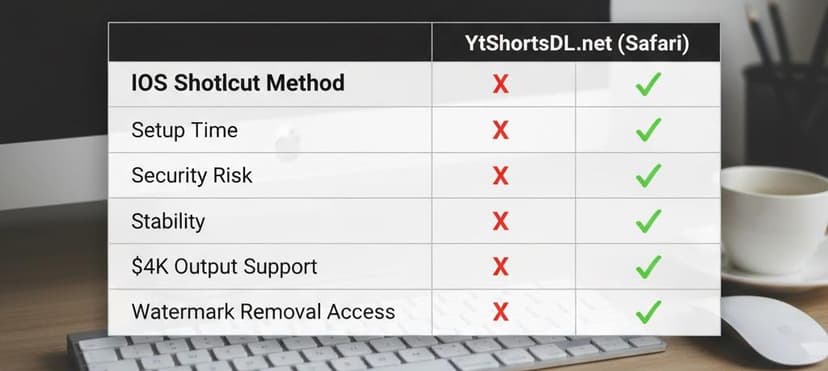
Everyone searches for the perfect youtube short downloader shortcut until it inevitably breaks. Shortcuts rely on community developers keeping up with YouTube's constant API changes, leading to frustrating instability. Worse, they expose your device to potential risks and lock you out of high-end features. Our stable browser tool, specifically engineered for iOS optimization, bypasses all those shortcut pitfalls, guaranteeing a consistent, secure download experience every single time, even for our Pro 4K files.
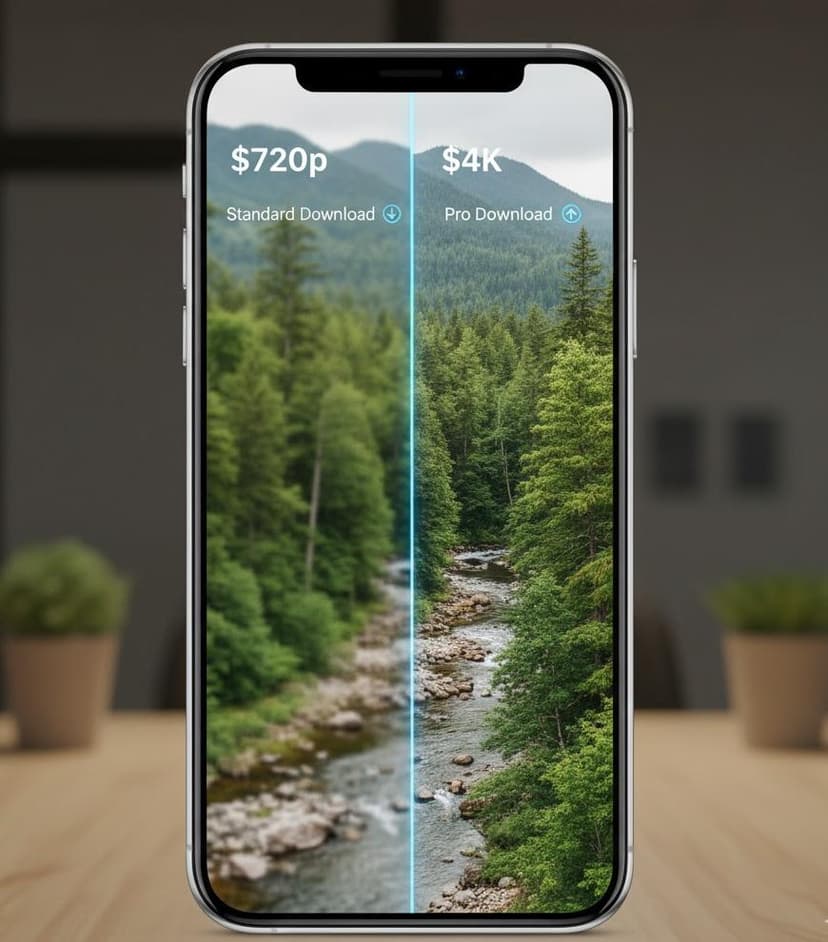
How to Get True 4K Quality on Your iPhone (The Pro Difference)
If you're reposting to high-quality platforms or using the footage in a larger edit, 1080p often isn't enough. Our Pro tool is the only way to get true, lossless 4K files directly to youriPhone.
Troubleshooting Common iOS Download Issues
Why didn't the file save to my Photos Library?
On iOS, Safari saves all downloads to the default "Downloads" folder within the Files App first. You must manually move the video from there to your Photos Library if you want it to appear in your camera roll.
Is there an App Store app?
No, and that's the point! Our browser-based tool is safer and requires zero installation. Beware of look-alike apps in the App Store.